How To Make A Game In Scratch? A Complete Guide for Beginners
If you have ever played a game and thought, I want to make something like this, Scratch is where most young coders begin. Learning how to make a game in Scratch requires zero prior experience. It is a free, block-based programming tool built by MIT that lets you create real, playable games right in your browser.
Whether you are a child or an adult, it is genuinely one of the most fun ways to get into coding. This guide covers everything from your first project to adding levels, exploring 3D possibilities, and understanding where Scratch sits in the wider world of online gaming.
Why Scratch Is The Perfect Starting Point For Young Coders
Scratch has been around since 2007 and has millions of registered users worldwide. Here is what makes it stand out:
Runs entirely in a browser with no download or setup needed. It also has an offline editor.
Projects can be saved to your free account online.
You can remix other projects to learn how they work.
Teaches real programming logic: loops, variables, conditionals, and events.
How to Make a Game in Scratch (Step-by-Step)
Learning how to make a game in Scratch step by step follows a clear pattern regardless of what type of game you are building. Your three core building blocks are Sprites (characters or objects), Backdrops (backgrounds), and Blocks (the code). Here is how to build your first game:
Go to the official website and sign in or create a free account.
Click Create to open the project editor.
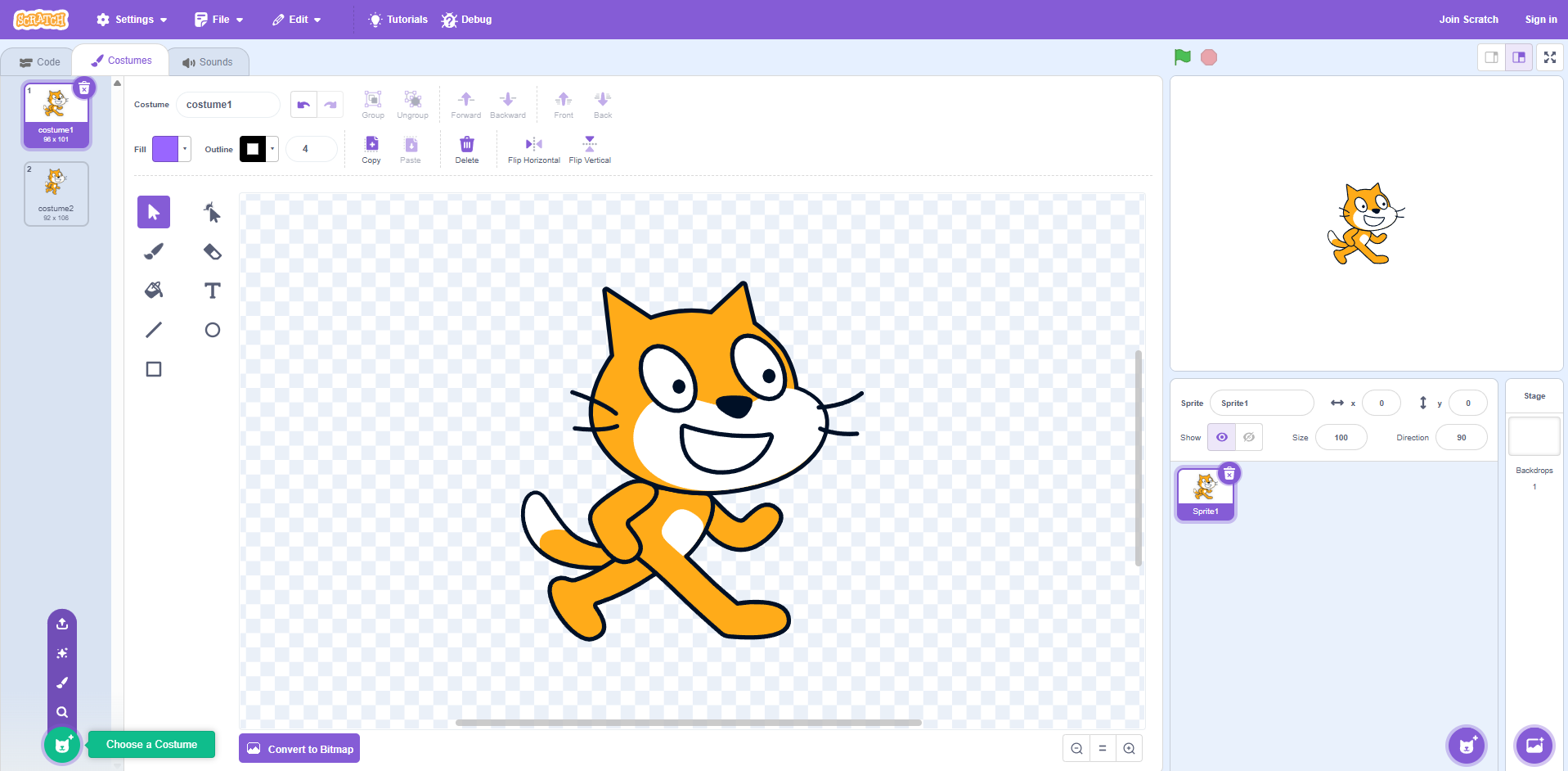
Choose or draw your sprite, anything from a cat to a spaceship.
Add a backdrop from the library or design your own.
Add motion blocks to your sprite, start with 10 steps, and if on edge, bounce.
Set up keyboard controls using when key pressed blocks from the Events section.
Create a Score variable under Variables > Make a Variable.
Add win or lose conditions using if touching colour or if touching sprite blocks.
Playtest with the green flag and tweak until it feels right.
Publish and share your project with the Scratch community.
That is the full core loop. Start small, get it working, then keep building on it.
How to Make a Game on Scratch With Levels
Once your basic game works, the logical next step is to make a game on Scratch with levels. Scratch has no built-in level system, but you can create one using variables and broadcasts. Here is how:
Create a variable called Level and set it to 1 at the game start
Use broadcasts to signal level completion, for example, broadcast Level 2 Start
Change the backdrop when a new level begins, so players get a clear visual cue
Increase difficulty by making obstacles faster as the level number goes up
Use when I receive blocks to reset sprite positions and update behaviour
What Kind of Games Can You Build in Scratch?
Scratch is more flexible than most beginners expect. Here is a quick look at popular game types and what you will learn from each:
Game Type | Difficulty | What You Will Learn |
Maze Game | Beginner | Movement, Collision Detection |
Catch Game | Beginner | Variables, Scoring |
Platformer | Intermediate | Gravity, Jump Mechanics |
Quiz Game | Intermediate | User Input, Conditionals |
Shooter Game | Advanced | Sprite Cloning, Projectile Logic |
Can I Make a 3D Game in Scratch?
This question comes up all the time: Can I make a 3D game in Scratch? The honest answer is not in the traditional sense, but sort of, if you are willing to put in the effort.
Scratch is a 2D environment with no native 3D engine. That said, advanced users have built impressive pseudo-3D effects using:
Pen blocks to draw environments frame by frame
Scaling sprites based on position to simulate depth
Raycasting, a technique that makes flat maps look three-dimensional, similar to early
Wolfenstein-style games
These are complex and not where beginners should start. If 3D is your long-term goal, Scratch builds the logic foundation you need before moving to tools like Unity or Godot.
Scratch vs Poki Games: What Is the Difference?
You have probably come across Poki games while browsing for free games online. Poki is a popular browser-based platform with thousands of HTML5 games across different genres. Scratch and Poki games are quite different. Poki hosts professionally developed games that cannot be built with Scratch blocks, and you cannot publish a Scratch project directly to Poki. That said, the creative mindset is the same.
Quick Tips to Make Your Scratch Game Stand Out
A working game is great. A fun game is better. Here are a few things that separate memorable Scratch projects from forgettable ones:
Add sound effects, even simple ones change how a game feels completely.
Use custom sprites instead of defaults to make the project feel personal.
Add a start screen with a Press Space to Start prompt to make your game feel polished.
Conclusion
Learning how to make a game in Scratch is one of the best entry points into coding that exists. It is free, beginner-friendly, and every project teaches you logic, problem-solving, and creative thinking that carry over into any language you pick up later.
Ready to learn further? SkillSnap Learning has a dedicated teaching staff for classes 6-10, along with free NCERT Solutions and 24/7 help. Continue exploring our blogs to learn more.